Photography Editing · October 8, 2026 · Christopher Brenzel
LightCraft vs Lightroom - Does This Free Photo Editor Actually Work?
A free editor that feels familiar, with real tradeoffs in presets, masking, and RAW rendering.
I wanted to edit photos without constantly pushing my computer to its limits. Adobe Creative Cloud has been frustrating on my machine, with slowdowns, freezing, and crashes interrupting my workflow. LightCraft caught my attention because it is free and looks familiar to someone coming from Lightroom.
Is it too good to be true? In my experience, no. It works as a photo editor, and I could get close to my Lightroom results on several photos. But the comparison also revealed limitations that matter, especially automatic subject masking and the starting appearance of one RAW file.
My early verdict - LightCraft feels much faster and handles basic editing well. Lightroom still gives me a stronger starting point for precise masks, and moving presets between editors requires more care than I expected.
How I compared LightCraft and Lightroom
I used five photographs covering a newborn portrait, an old shed, colorful hot-air balloons, a turkey vulture, and a butterfly on a thistle. These are practical examples from my own editing workflow, rather than a controlled benchmark.
Some tests involved minimal editing. Others compared the same preset or checked subject selection. For the balloons, I also manually adjusted the LightCraft result to get closer to Lightroom. For the butterfly, I compared previews before editing and exported both preset-applied images as JPEGs at 100% quality.
The results reflect my computer and the software I used in October 2026. I did not record the exact app versions or system specifications, so these observations should not be read as universal performance claims.
Speed and stability - Why I tried a free Adobe Lightroom alternative
LightCraft feels much more responsive on my computer. Lightroom and the broader Creative Cloud setup have repeatedly brought me up against my computer's processing limits, with freezing and crashes becoming a source of frustration.
That does not mean every LightCraft edit took less time. The newborn photo took about 15 minutes in each program. In LightCraft, I was learning the interface. In Lightroom, the application was slow and would not import the LightCraft preset I tried, so I recreated the adjustments manually.
Those are different kinds of friction. I can get more familiar with an interface, but waiting for an application remains frustrating even when I know exactly what I want to do.
Newborn photo - Different color, similar editing time
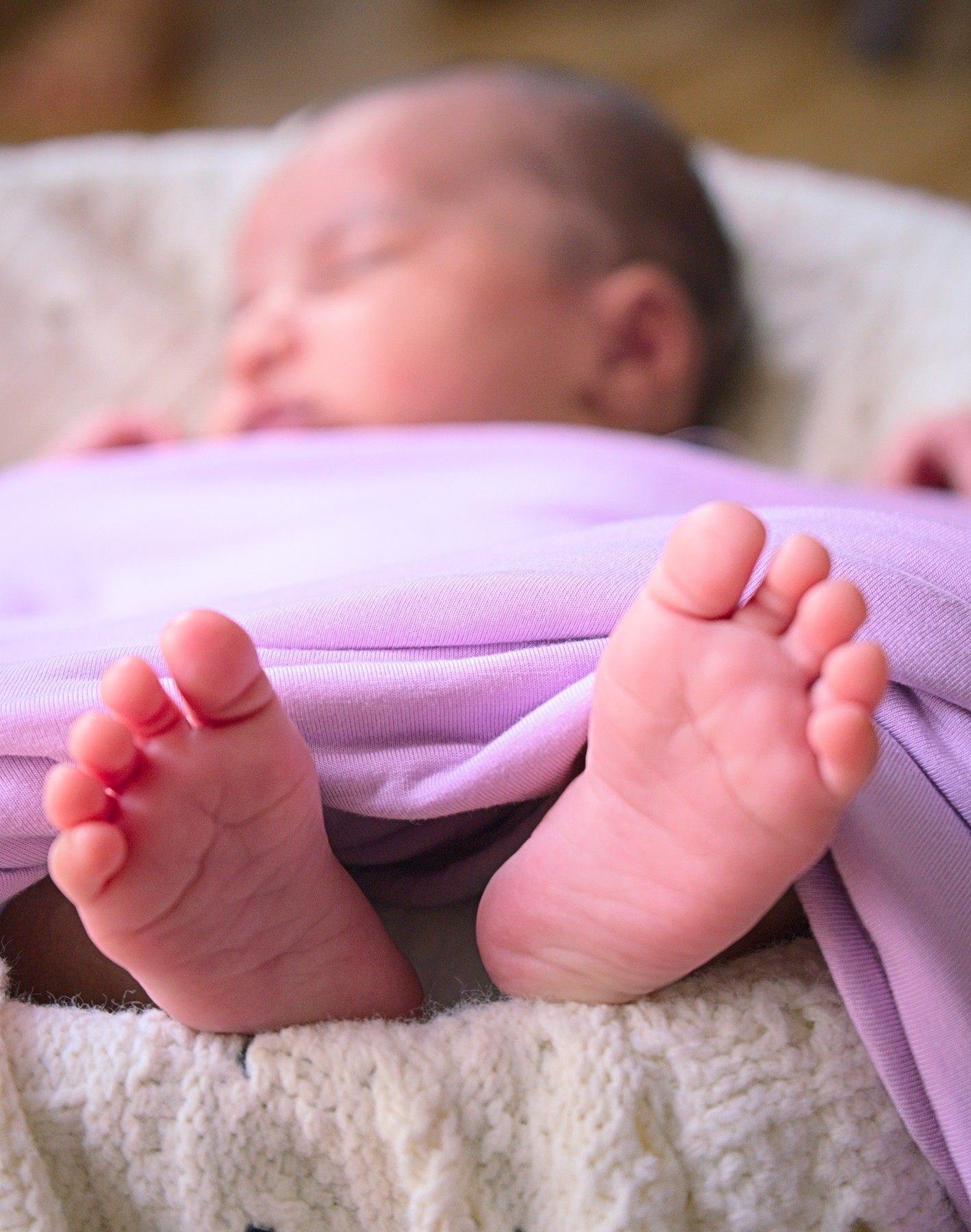
The newborn comparison produced two usable but different-looking edits. The LightCraft export is brighter and pinker. The comparison export is warmer, with deeper shadows. These differences reflect the finished adjustments, and do not by themselves prove that one editor handles skin tones better.
LightCraft
Comparison export
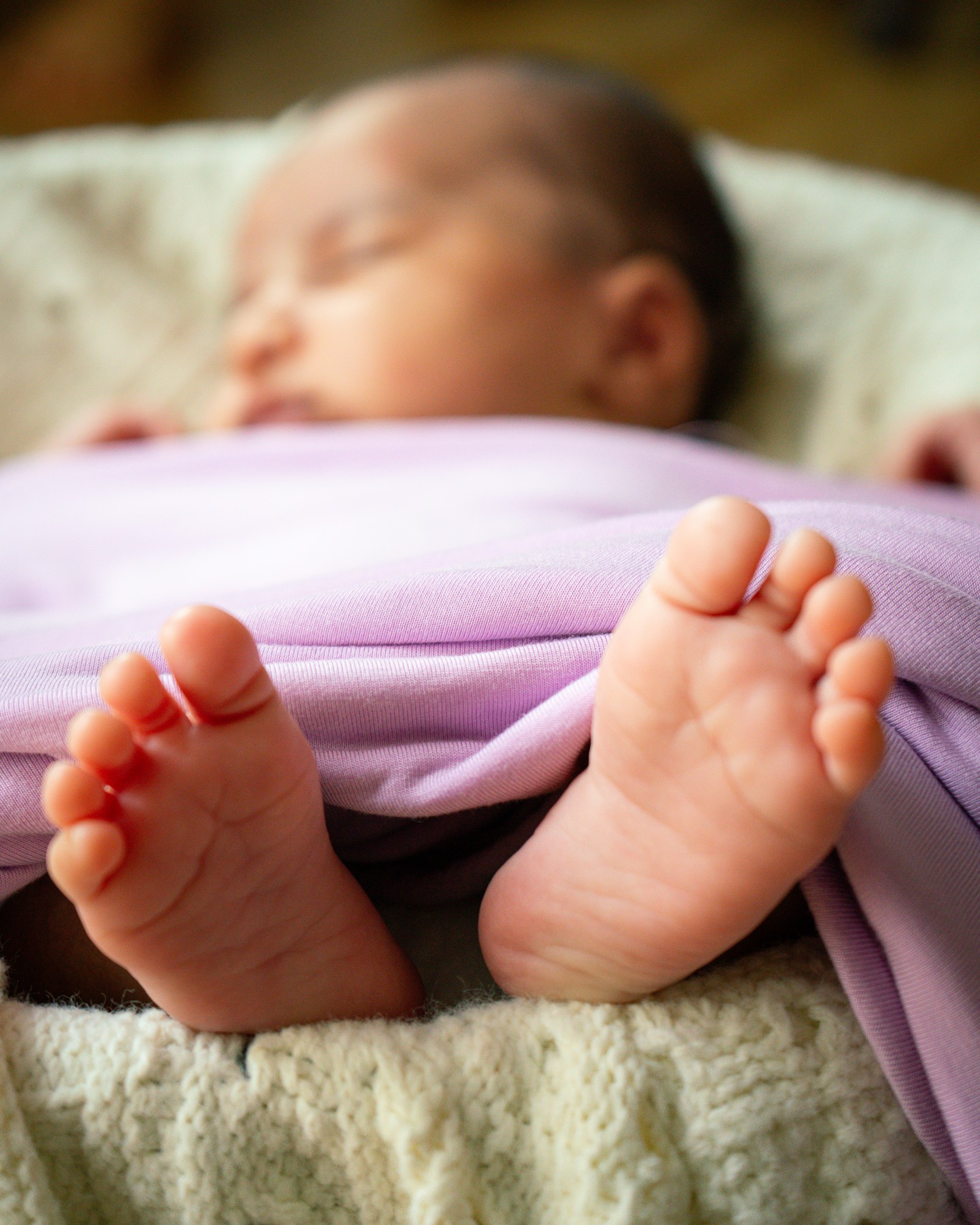
The feet and blanket are the useful areas for comparing texture. The face is outside the plane of focus in both images.
Minimal editing - The shed photos look nearly the same
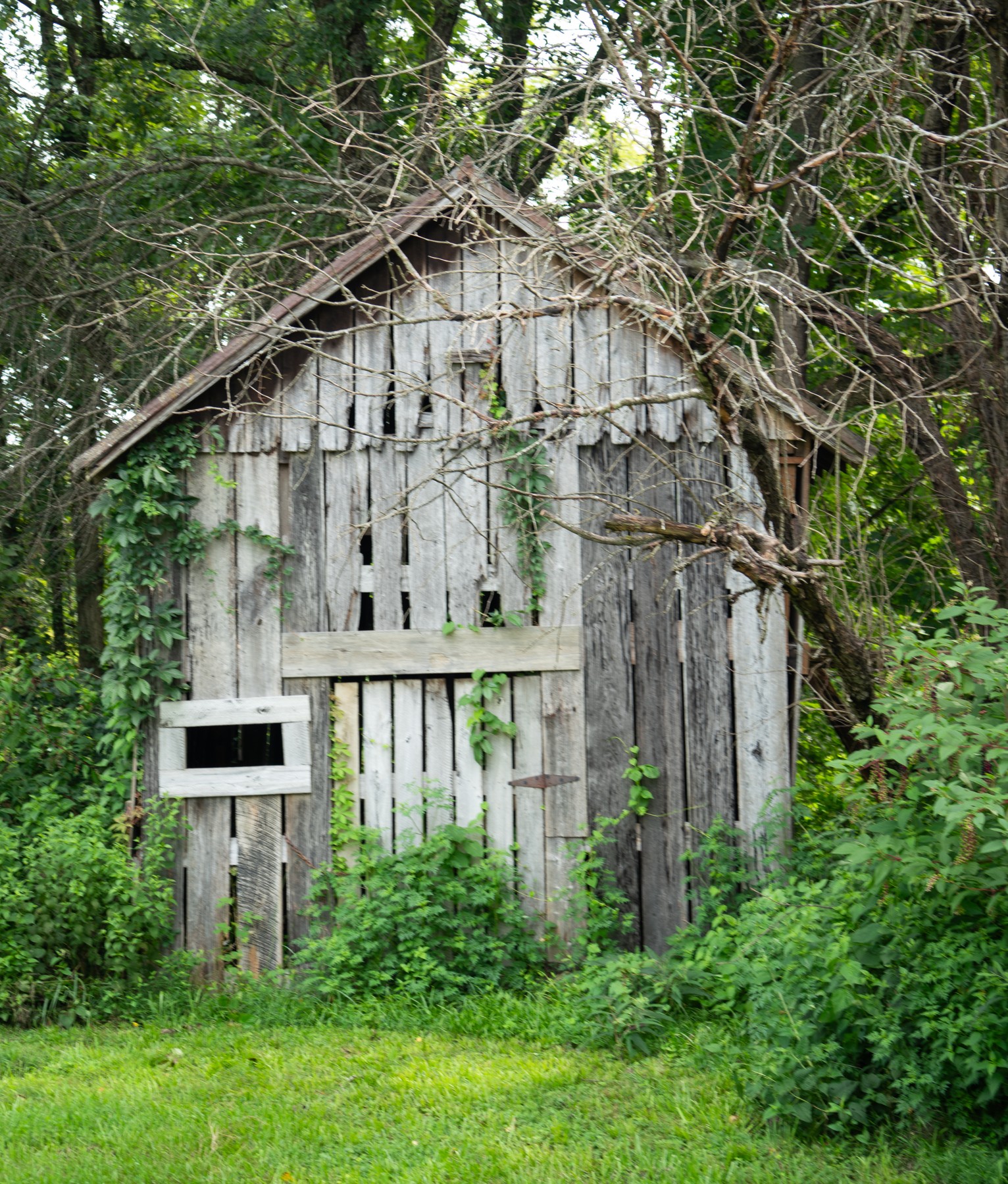
I kept the shed edit minimal, and the two results look very close at normal viewing size. There are small differences in framing and color, but I do not see an obvious visual advantage in either finished image.
Comparison export
LightCraft
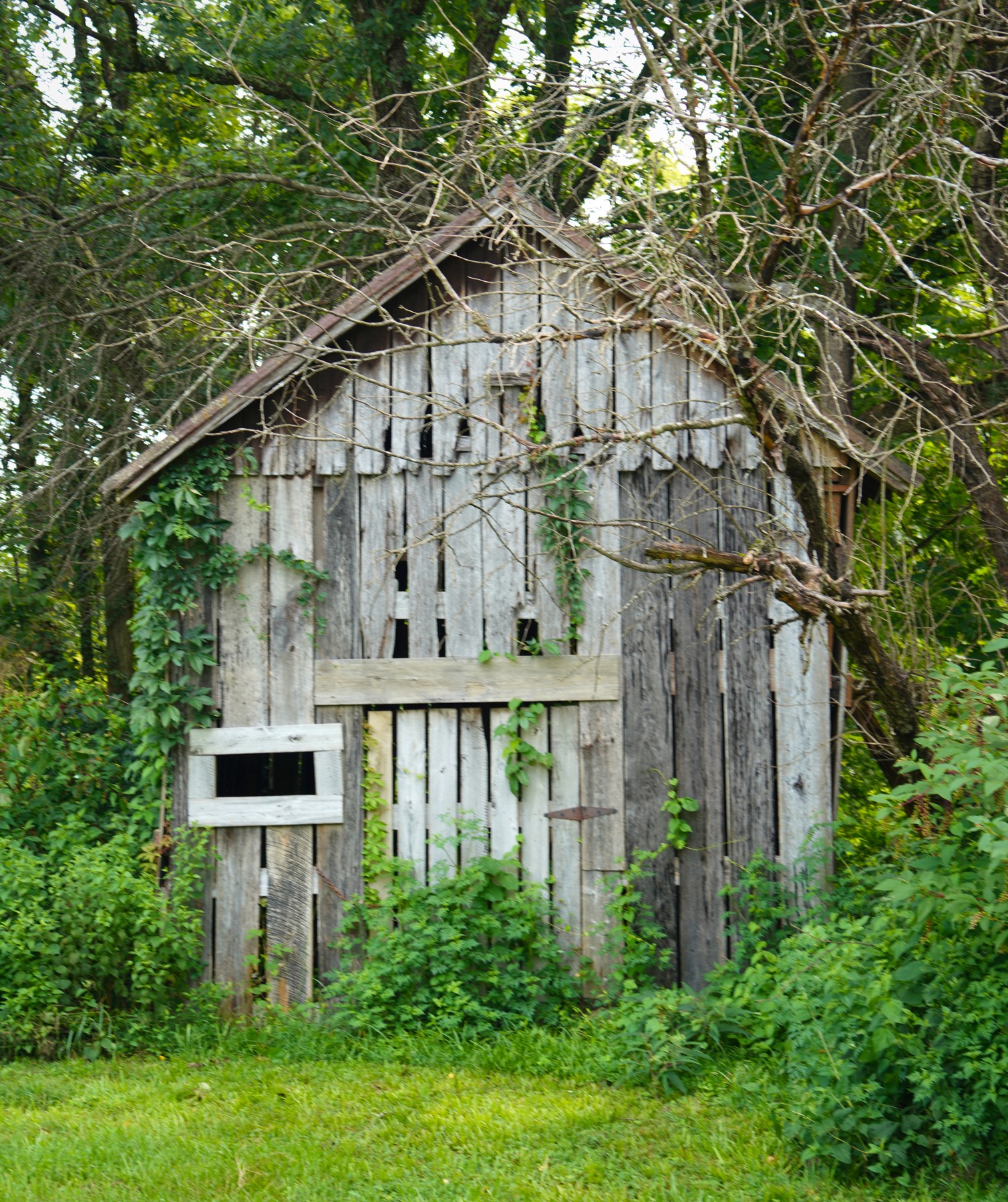
This is a useful answer to the basic question of whether LightCraft actually works. For this simple edit, it gave me a result I was happy with.
Do Lightroom presets look the same in LightCraft?
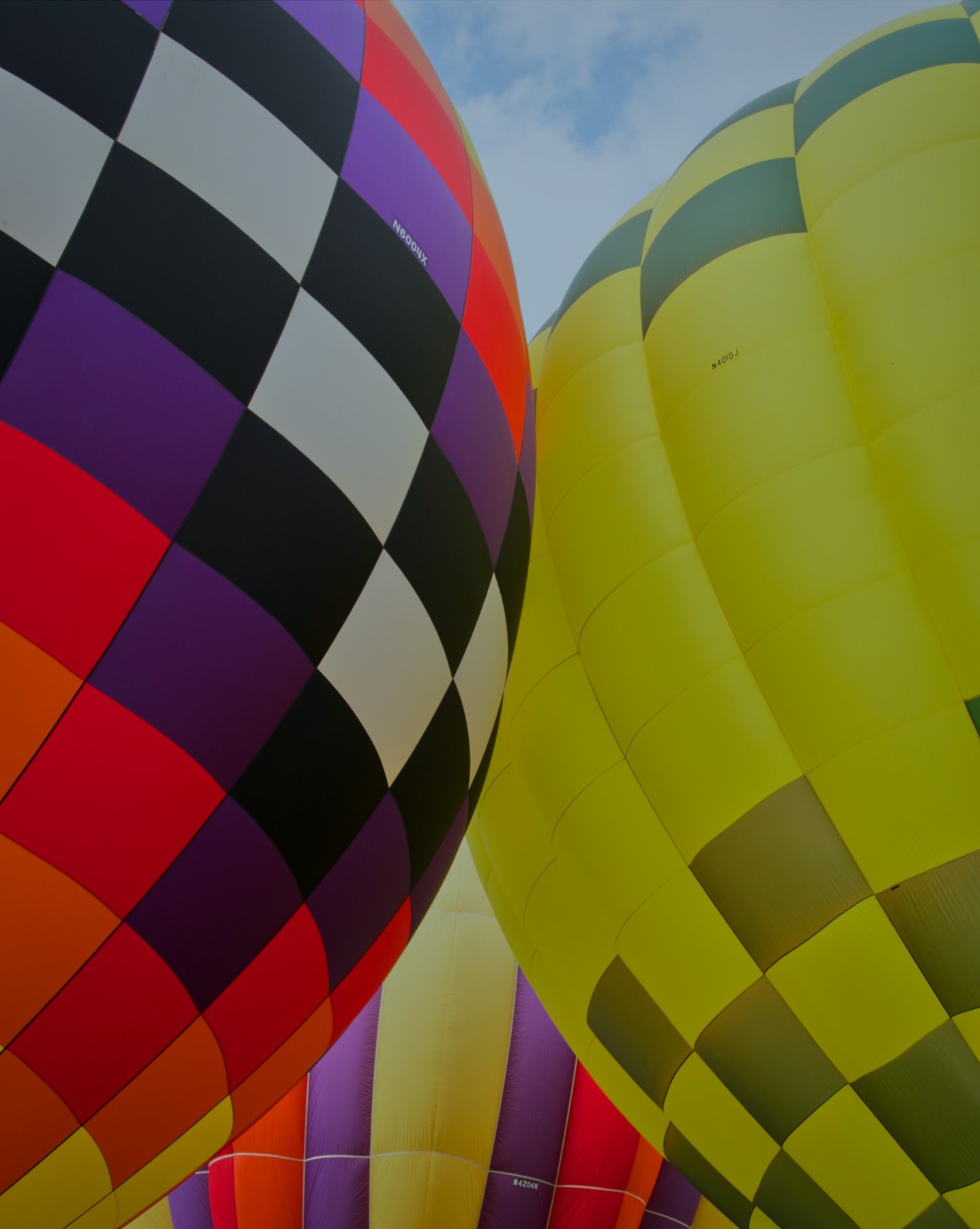
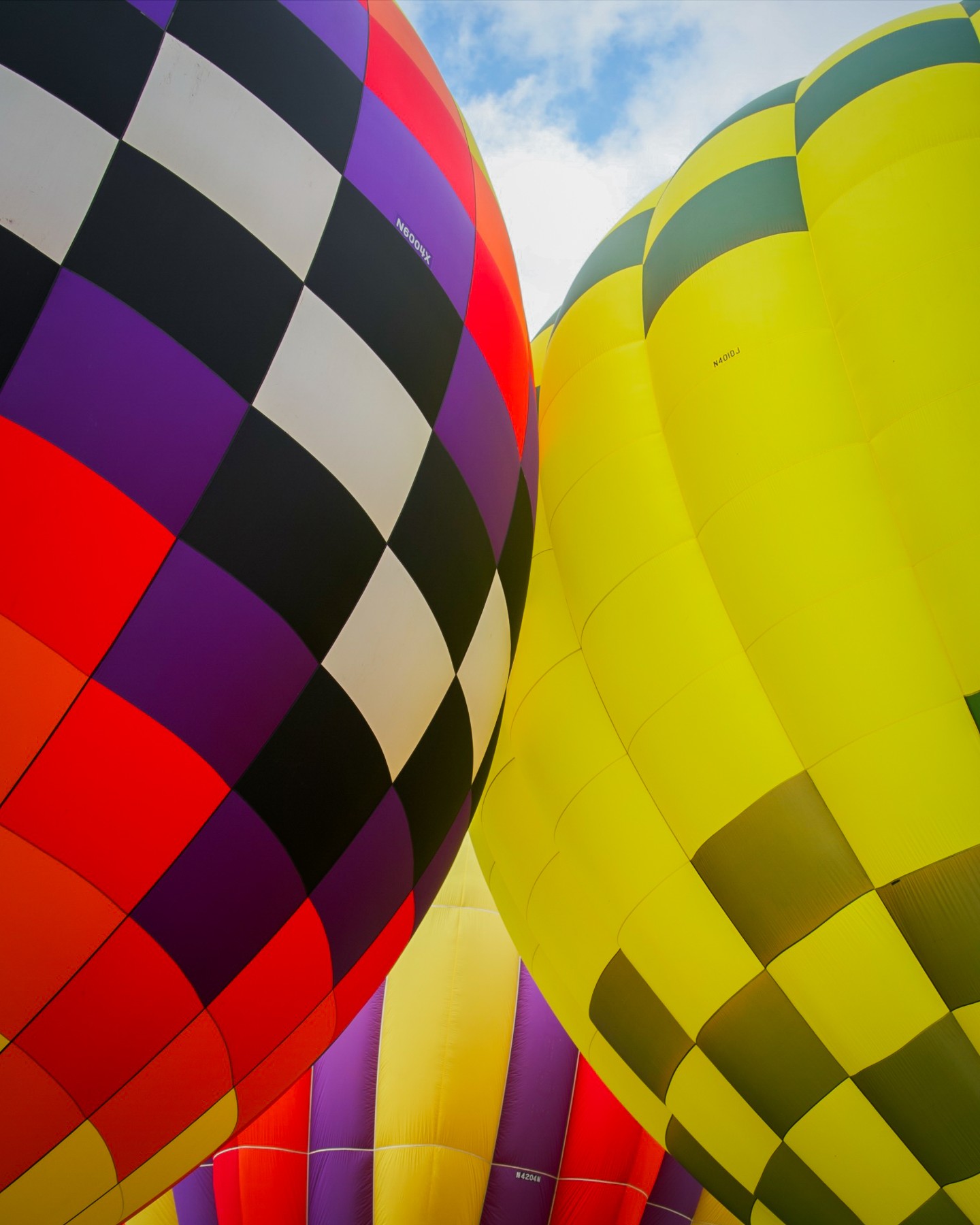
Not in my balloon test. Applying the same preset produced a much darker, more muted starting result in LightCraft. Lightroom's yellow balloon was brighter, and the sky was lighter.
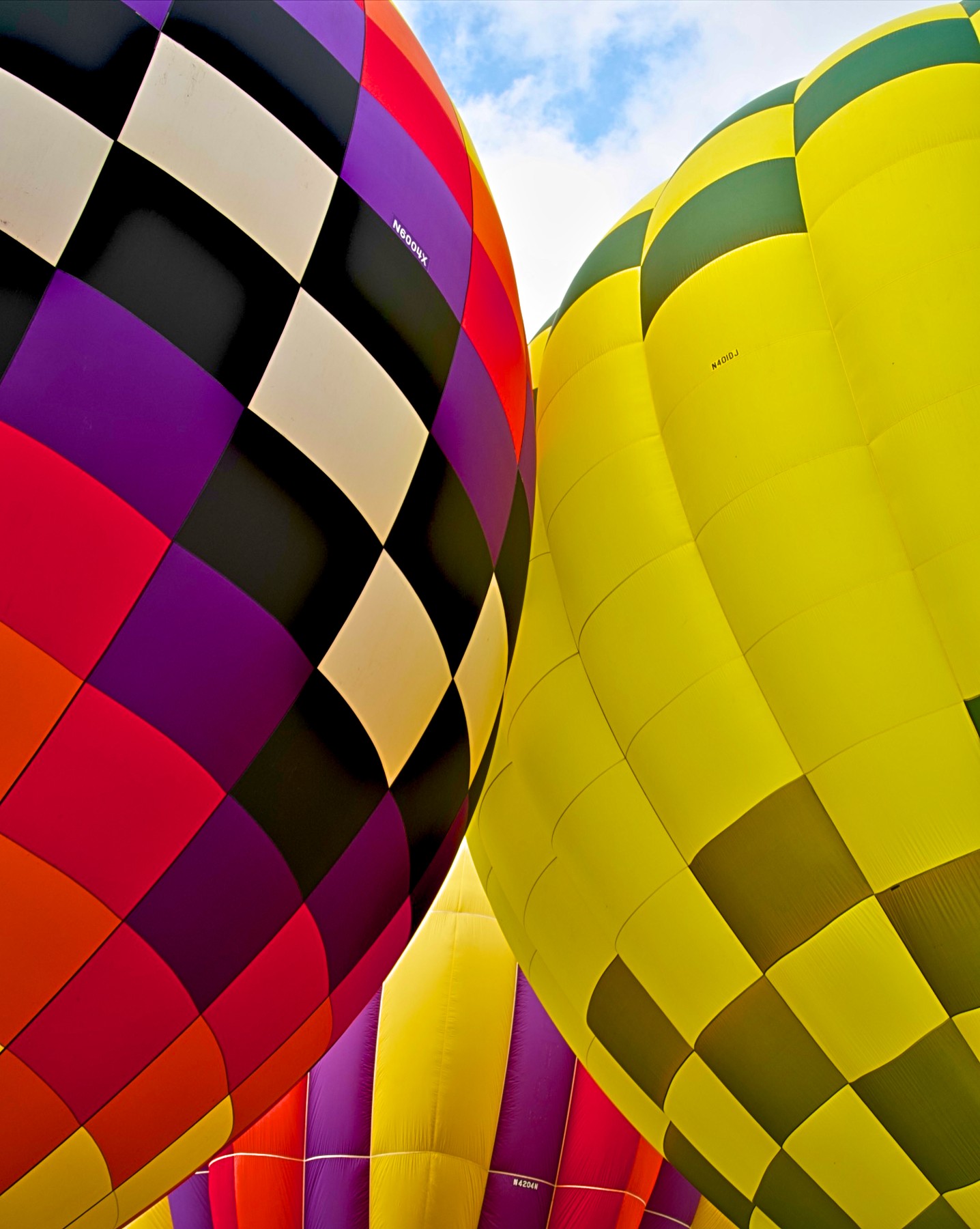
I then adjusted LightCraft manually to match the Lightroom photo and got very close overall. The revised LightCraft version has deeper blacks and more pronounced contrast, but it shows that I could move toward the look I wanted.
LightCraft with preset
Lightroom with same preset
LightCraft after adjustments
The LightCraft project documentation lists XMP preset support. My experience adds a practical qualification. Importing a preset and reproducing its Lightroom appearance are separate questions.
There are plenty of free presets in the Lightroom ecosystem, which can be useful or overwhelming. If you already rely on a small set, test those specific presets in LightCraft. Also, Lightroom preset import into LightCraft does not establish that Lightroom can import a LightCraft preset. My reverse import attempt on the newborn edit did not work.
Subject masking - The biggest limitation I found
I deliberately chose a turkey vulture perched on a utility pole. The dark bird against the blue sky provides a clear boundary for testing subject selection.
LightCraft subject selection
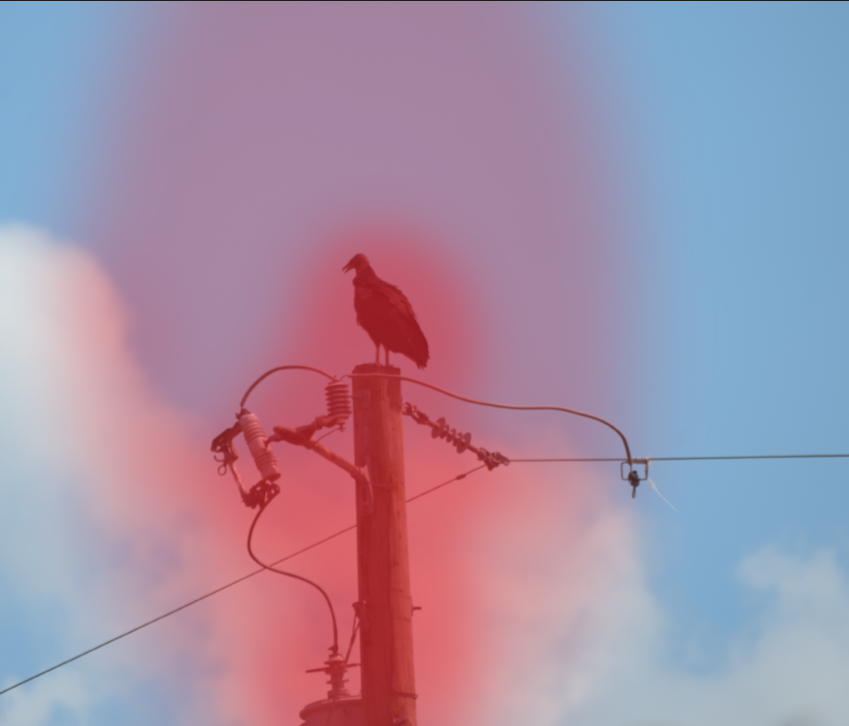
Lightroom subject selection
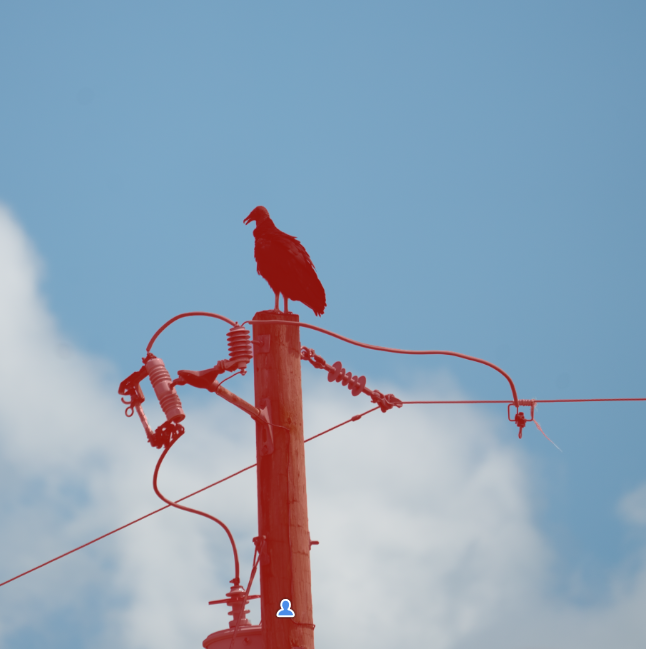
LightCraft included a large, softly edged area of sky around the bird and pole. Lightroom followed the vulture, pole, and much of the attached hardware far more precisely.
Neither mask selected only the bird, but Lightroom gave me a much better starting point. Brightening the subject with the initial LightCraft mask would also brighten surrounding sky. Getting a more isolated adjustment would require manual refinement.
LightCraft's masking may be enough for a rough local correction. For precise subject work, this test showed a clear reason to keep Lightroom.
Butterfly RAW rendering - A difference before editing
The butterfly photo showed another important difference before I applied a preset. LightCraft displayed a broad pink-purple haze in the bright background around the butterfly. Lightroom's starting preview looked much more neutral.
Lightroom before editing
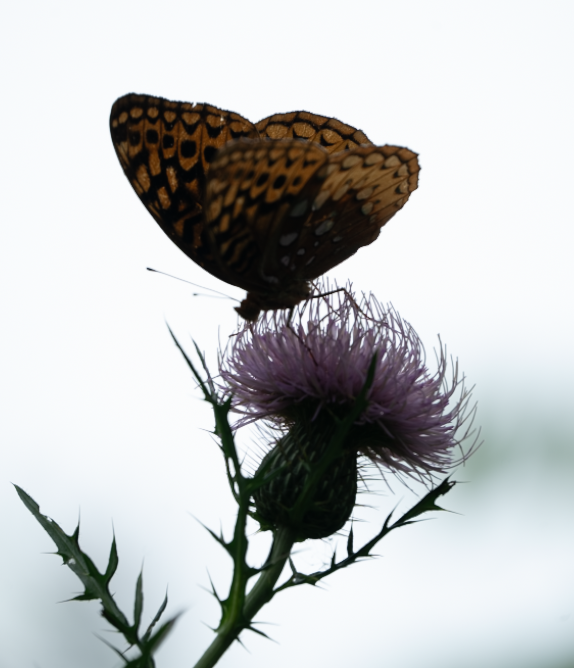
LightCraft before editing
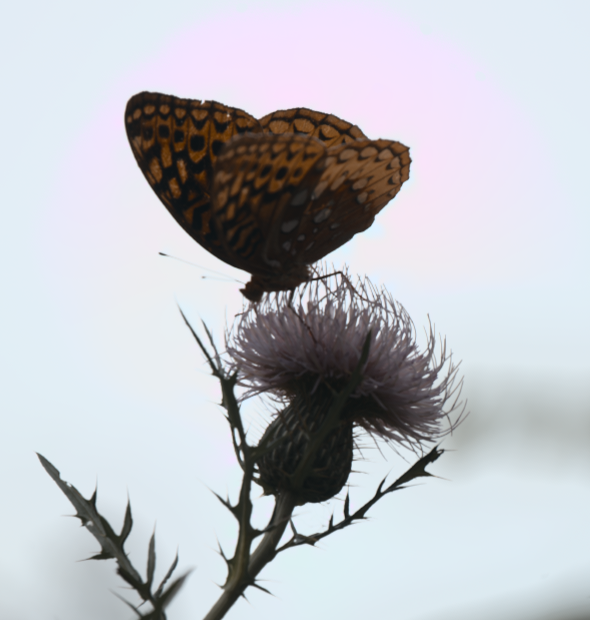
LightCraft also showed more subdued greens in the plant. The haze remained in the exported JPEG, so it was not confined to the editing preview.
I have not identified the cause. Different profiles, default corrections, or RAW processing could contribute. What I can say is that the two editors gave me visibly different starting points for this file.
Lightroom JPEG
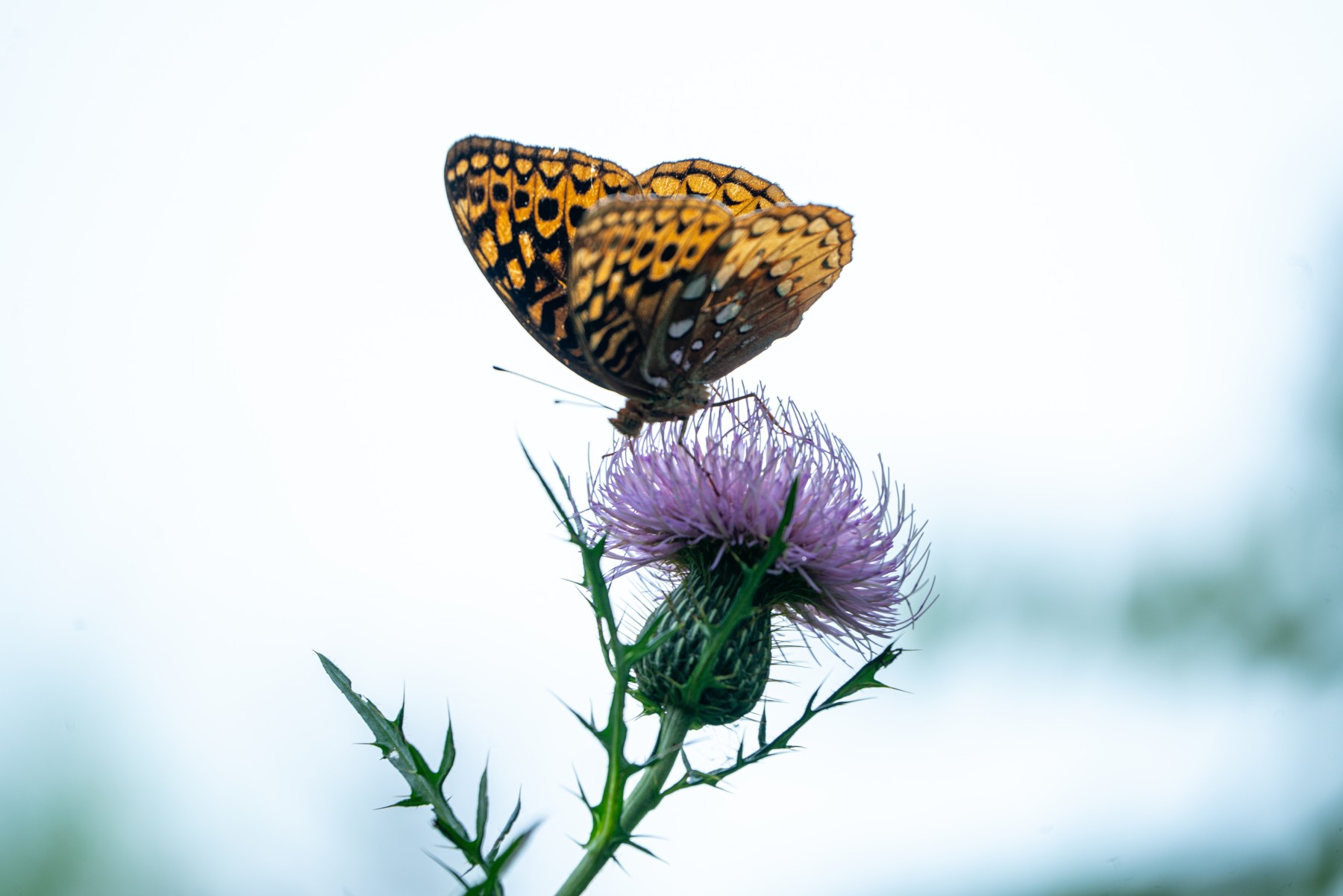
LightCraft JPEG
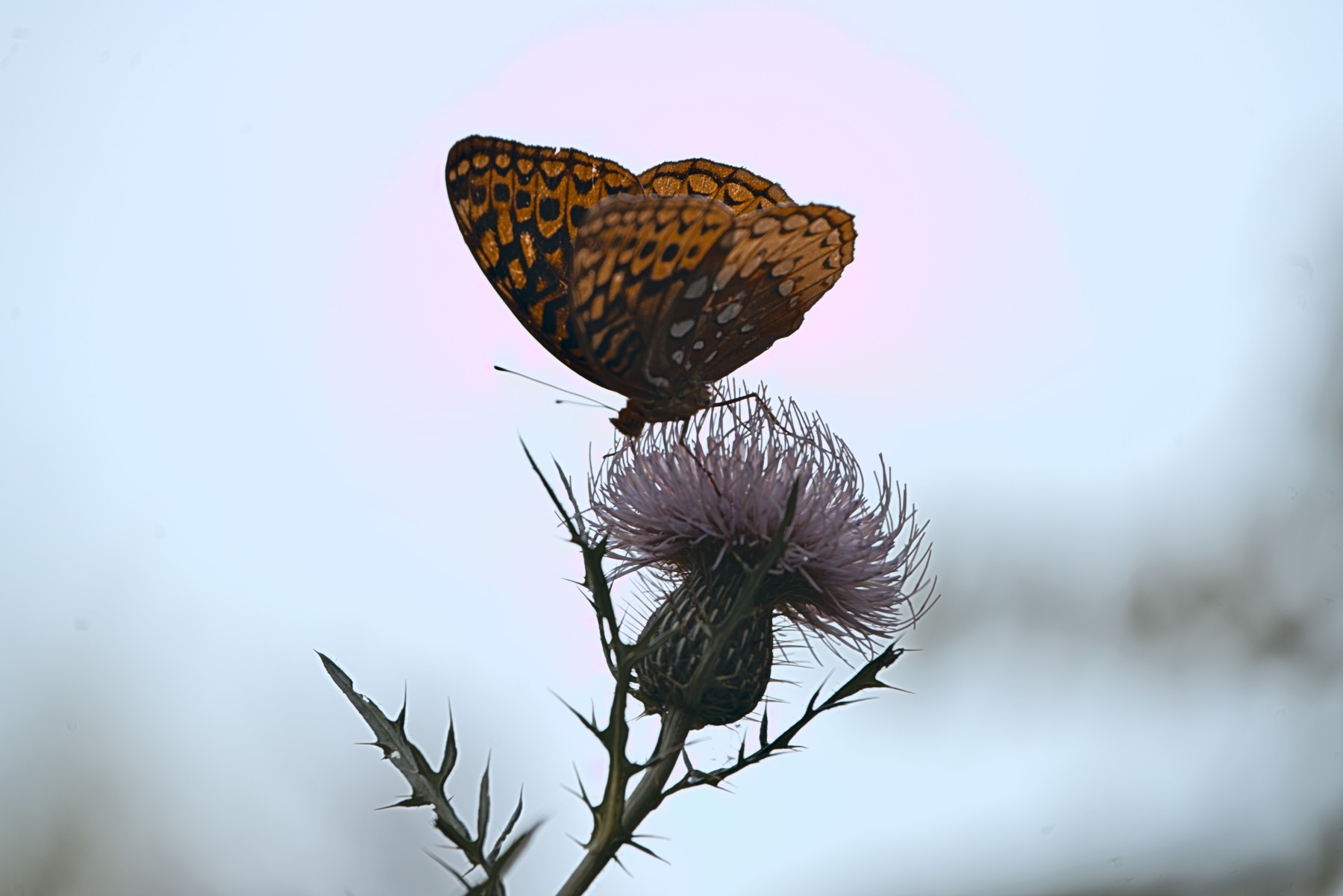
If you edit backlit subjects, fine edges, or bright backgrounds, try your own RAW files before switching. A familiar interface does not guarantee the same initial rendering.
JPEG export sizes - Same pixels, different files
Both butterfly exports retained 7,952 × 5,304 pixels, approximately 42.18 megapixels. Despite choosing 100% JPEG quality in both programs, their file sizes differed substantially.
| Editor | Dimensions | File size |
|---|---|---|
| Lightroom | 7,952 × 5,304 | 17.71 MB |
| LightCraft | 7,952 × 5,304 | 5.07 MB |
LightCraft's original export was about 71% smaller. Lightroom's was roughly 3.49 times larger. These measurements come from the original exported files, not the optimized images displayed on this page.
Maximum quality settings are not necessarily equivalent across JPEG encoders. Metadata and image content can also affect size. The smaller file alone does not prove lower quality, and identical dimensions do not prove identical detail.
AI features, cloud storage, and the learning curve
I find LightCraft less crowded with AI features, which is both an advantage and a tradeoff. A simpler editing experience appeals to me, but the turkey vulture test shows where better automated tools can save work.
Adobe's cloud storage and broader AI-assisted workflow remain advantages for my needs. I did not run a separate cloud-storage comparison or test every AI feature, so those are workflow preferences rather than measured results from these photos.
Compared with my experience of darktable, LightCraft looks and feels more familiar coming from Lightroom. I still spent time finding controls on the first edit, but the switch did not feel like learning an entirely new editing approach. This is not a full darktable comparison.
LightCraft is described as free and open source on its official product page. That makes trying it with a few representative photos a reasonable way to see whether it fits your workflow.
Can LightCraft replace Lightroom?
For straightforward editing, LightCraft is a credible free Lightroom alternative. It works, feels responsive on my computer, and produced results close to Lightroom in several of my examples.
The tradeoffs are real. The same preset did not produce the same look. Subject detection was much less precise in the vulture test. One RAW file showed a purple haze before editing that persisted through export.
If your priorities are free editing, familiar controls, and basic adjustments, LightCraft is worth testing. If accurate automatic masks and dependable results from your established presets are central to your work, my comparison gives you reasons to keep Lightroom available.
My takeaway is that LightCraft is useful, but I would test a representative set of my own photos before treating it as a complete replacement.
Frequently asked questions
Does LightCraft actually work as a photo editor?
Yes. I used it to edit and export the photos shown here. It handled basic adjustments and produced usable results, although masking and the default rendering of one RAW file showed clear limitations.
Is LightCraft a free Lightroom alternative?
LightCraft is offered as a free, open-source photo editor. For my basic editing needs it is a credible alternative, but this test did not establish complete feature parity with Lightroom.
Is LightCraft faster than Lightroom?
It felt much more responsive on my computer. However, my newborn edits each took about 15 minutes, for different reasons. I have not measured a speed advantage across every task or computer.
Can you import Lightroom presets into LightCraft?
I applied the same preset in both editors, but the results looked noticeably different. I manually adjusted the LightCraft balloon edit to get closer to Lightroom. Preset import and matching appearance are separate questions.
Is LightCraft subject masking as good as Lightroom?
In my turkey vulture test, no. LightCraft included a broad area of sky, while Lightroom followed the bird, pole, and attached hardware much more precisely.
Can LightCraft replace Lightroom for RAW editing?
It may cover straightforward edits, but I would test your own RAW files before switching. My butterfly photo showed a purple haze in the LightCraft preview before editing, and that haze remained in the exported JPEG.
What about darktable? Great photos, a different workflow
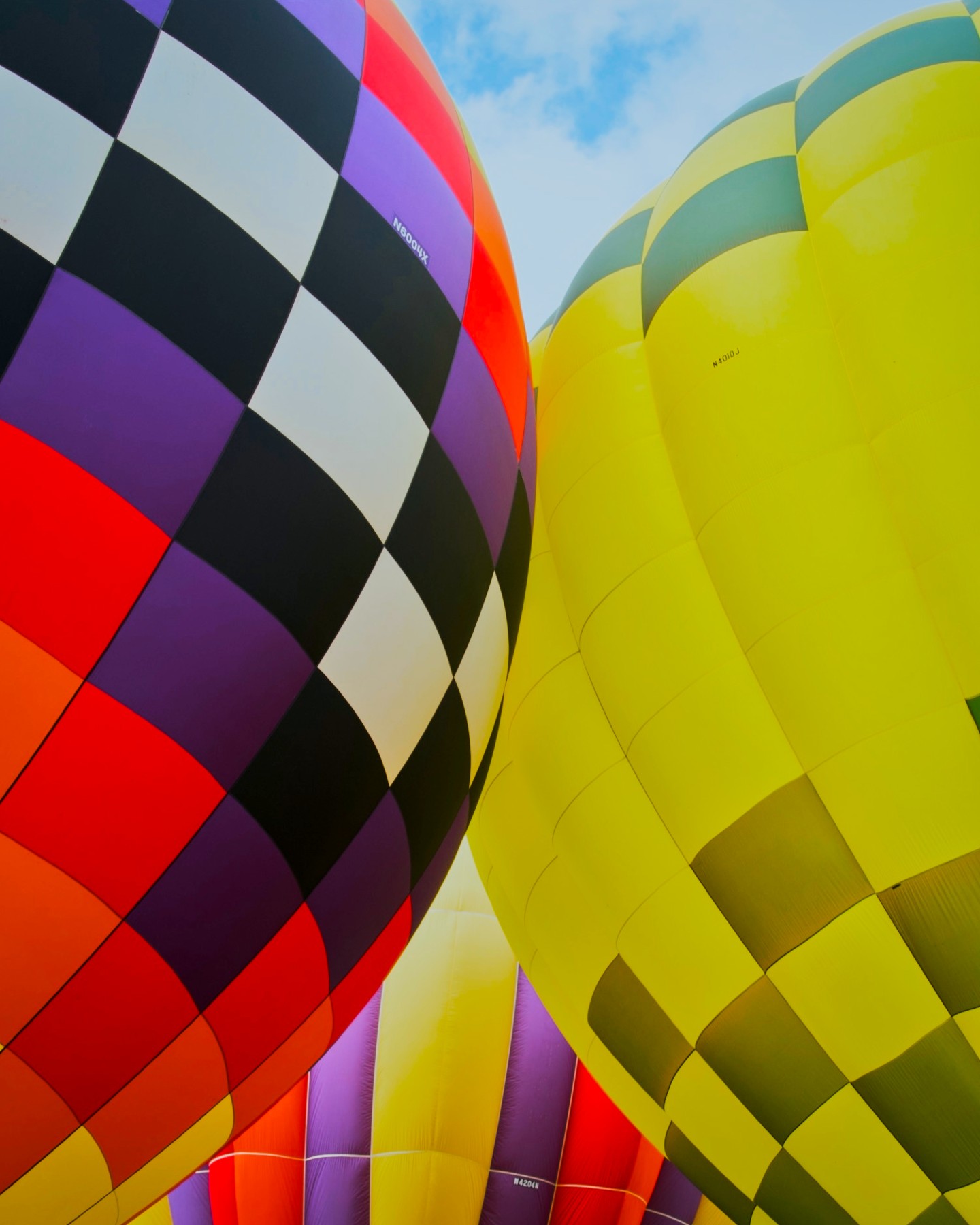
darktable is another free, open-source photography editor and RAW developer worth considering. It can produce great photos, as my balloon edit below shows.
The learning curve is the bigger hurdle. It is easy to dismiss darktable when you already have an established Lightroom workflow, because its approach feels substantially different. Coming from Lightroom, I find LightCraft more familiar. With darktable, I need to spend more time learning how the tools and workflow fit together.
Edited in darktable
darktable subject selection
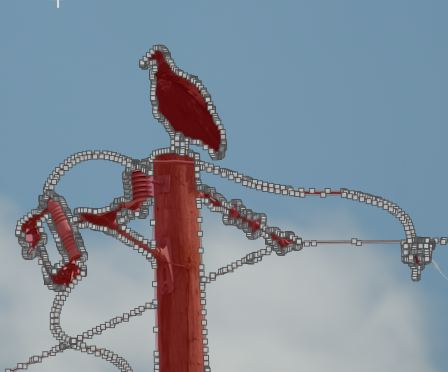
In my turkey vulture test, the AI-assisted subject selection was better than LightCraft's broad selection, but it was not perfect. It followed the bird, pole, and wiring much more closely while still including more than just the vulture. This gives me a more useful starting point, even if I still need to refine the mask.
The current darktable AI masking documentation explains its subject-selection tools and model requirements. My screenshot shows the result from my own test, rather than a comprehensive assessment of every masking option.
A more detailed darktable post is coming soon. For now, my takeaway is that darktable lets you get great photos, but switching from Lightroom means getting comfortable with a different approach.